03
Wi-Fi Airtime Utilization Explained: How It Affects Speed & Performance
Learn how Wi‑Fi airtime utilization directly influences network speed and how to optimise it for smoother connections.
Anyone who has just started exploring home networking may have heard the phrase "Wi‑Fi airtime utilization" and wondered why it matters. In recent months, more people are noticing slow Wi‑Fi even though they have high‑speed internet plans, and the culprit often turns out to be how much of the wireless channel’s time is being used for data versus idle periods. Understanding this concept can turn a frustrating, lag‑filled experience into a smooth, reliable connection. Below is a friendly, step‑by‑step guide that explains the basics, why it matters, and what can be done to improve speed.
A Closer Look at Wi‑Fi Airtime Utilization
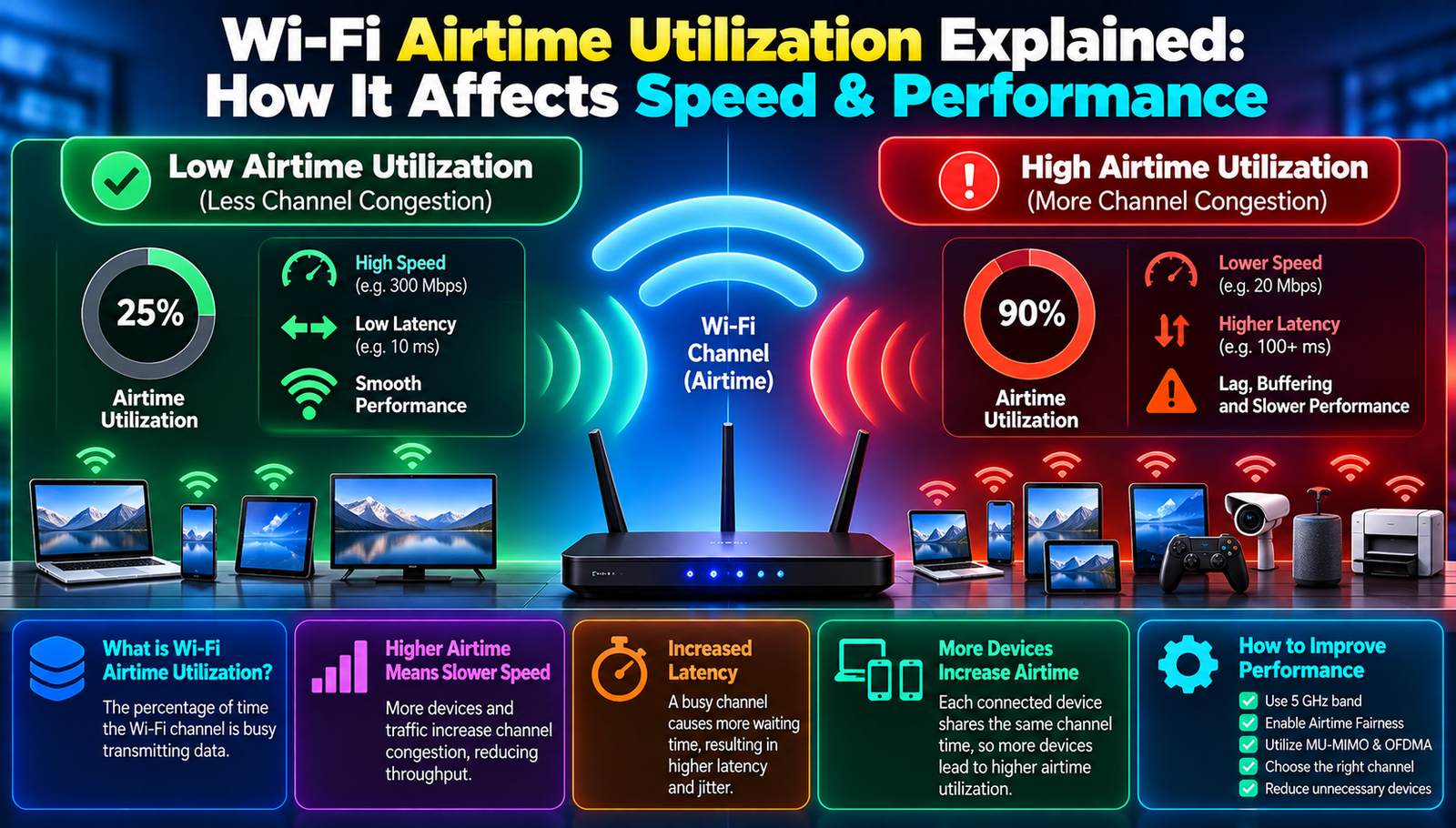
Wi‑Fi airtime utilization sometimes called channel airtime or air‑time occupancy refers to the proportion of time a wireless channel spends transmitting data packets (including both useful data and overhead) compared to the total time the channel is available (plain English: how much of the wireless “road” is being used at any moment). When the channel is heavily occupied, each device gets a smaller slice of the road, which can slow down overall speed.
- Airtime Utilization
- Plain-English Meaning: The percentage of time a Wi-Fi channel is busy transmitting data.
- Channel
- Plain-English Meaning: A specific portion of radio frequency that devices use to communicate, similar to a lane on a highway.
- Throughput
- Plain-English Meaning: The actual amount of data successfully transferred per second, usually measured in Mbps.
- Collision
- Plain-English Meaning: When two devices transmit data at the same time, causing interference and requiring the data to be sent again.
- Latency
- Plain-English Meaning: The delay between sending a request and receiving a response, usually measured in milliseconds.
- MIMO
- Plain-English Meaning: Multiple-Input Multiple-Output technology that uses multiple antennas to send and receive several data streams simultaneously.
Why How Wi‑Fi Airtime Utilization Affects Network Speed Matters
First, consider who benefits from a clear understanding of airtime utilization. Home users with multiple smart devices phones, laptops, streaming boxes, and IoT gadgets often notice that adding one more device suddenly makes everything slower. By recognizing that the shared wireless channel is becoming saturated, they can take concrete steps (like moving to a less‑crowded band) to restore performance.
Second, the real‑world impact can be quantified. In a typical 2.4 GHz network, a single device using 20 Mbps of throughput might occupy roughly 30 % of the channel’s airtime when accounting for protocol overhead. Add three more devices each demanding 15 Mbps, and the channel can quickly exceed 80 % utilization, leaving only 20 % for new traffic. At that point, latency spikes often rising from 15 ms to over 80 ms and throughput drops dramatically, sometimes to half of the advertised speed.
Finally, enterprises and public venues (cafés, airports) feel the effect even more acutely. A Wi‑Fi network supporting 200 simultaneous users can see average speeds fall from 50 Mbps to under 5 Mbps if airtime utilization climbs above 90 %. Understanding the metric helps network managers allocate channels, adjust power levels, and deploy additional access points to keep the road from becoming a traffic jam.
Top Wi‑Fi Airtime Utilization Innovations to Know
1. Band Steering
Band steering is a feature that automatically guides devices to the less‑congested 5 GHz band instead of the crowded 2.4 GHz band (plain English: it nudges gadgets onto a faster, wider lane). Most modern routers include this setting, which can be turned on in the admin interface.
To use it, locate the “Band Steering” toggle in the wireless settings and enable it. The router will then evaluate each device’s capabilities and signal strength, moving compatible devices to the 5 GHz band while keeping older devices on 2.4 GHz.
Common beginner mistake: Disabling the feature because a device seems to lose connection often the device simply needs a brief reconnection period.
- Plus Points: Reduces 2.4 GHz airtime load; improves overall throughput.
- Plus Points: Often automatic, requiring no ongoing user effort.
2. Dynamic Frequency Selection (DFS)
DFS is a regulatory mechanism that allows routers to use additional 5 GHz channels that are normally reserved for radar (plain English: it lets the Wi‑Fi use extra lanes that are usually off‑limits). When radar is detected, the router quickly switches to a different channel.
Enable DFS by selecting “Auto” channel mode in the router’s 5 GHz settings. The router will scan for radar signals and choose a clear channel, helping spread traffic across more frequencies.
Common beginner mistake: Assuming DFS channels are always stable occasionally radar can force a channel change, briefly interrupting connections.
- Plus Points: Increases available channels, lowering airtime contention.
- Plus Points: Improves performance in dense environments.
3. Airtime Fairness
Airtime fairness is a scheduling algorithm that ensures each device gets an equal share of channel time, regardless of its data rate (plain English: slow devices don’t hog the road). Many modern firmware builds include this option.
Activate it by finding the “Airtime Fairness” checkbox in the advanced wireless settings and checking it. The router will then allocate airtime based on device speed, preventing a single slow phone from slowing the whole network.
Common beginner mistake: Expecting instant speed boost on high‑performance devices fairness balances the network, not always maximising a single device’s speed.
- Plus Points: Prevents slow devices from monopolising the channel.
- Plus Points: Leads to more predictable latency across devices.
4. MU‑MIMO (Multi‑User MIMO)
MU‑MIMO allows a router to transmit data to multiple devices at once using separate spatial streams (plain English: it talks to several devices simultaneously rather than one after another). This technology is common in Wi‑Fi 5 (802.11ac) and Wi‑Fi 6 (802.11ax) routers.
To benefit, both the router and the client device must support MU‑MIMO. Ensure the router’s firmware is up‑to‑date and enable “MU‑MIMO” in the advanced settings if it is not already on.
Common beginner mistake: Assuming older devices will gain MU‑MIMO benefits only compatible devices see the improvement.
- Plus Points: Increases overall network capacity.
- Plus Points: Reduces latency for concurrent streams.
5. OFDMA (Orthogonal Frequency Division Multiple Access)
OFDMA divides a channel into smaller sub‑carriers that can be assigned to different devices simultaneously (plain English: it splits the lane into tiny lanes for many cars). This is a hallmark of Wi‑Fi 6.
Enable OFDMA by selecting a Wi‑Fi 6 router and ensuring the “OFDMA” option is turned on. Devices that support Wi‑Fi 6 will automatically use the feature, resulting in lower airtime usage for small packets like IoT sensor data.
Common beginner mistake: Believing OFDMA works on 2.4 GHz most implementations are limited to 5 GHz or 6 GHz bands.
- Plus Points: Efficiently handles many low‑bandwidth devices.
- Plus Points: Cuts down overhead, improving overall speed.
6. Adaptive Power Control
Adaptive power control dynamically reduces the transmit power of a router when devices are close (plain English: it lowers the signal strength to avoid flooding the air with unnecessary power). Lower power means less interference and better airtime distribution.
Activate this feature by enabling “Transmit Power Control” or “Power Saving Mode” in the router’s settings. The router will then adjust power levels based on real‑time signal quality.
Common beginner mistake: Setting power too low and causing dead spots use the automatic mode rather than a fixed low value.
- Plus Points: Reduces co‑channel interference.
- Plus Points: Can extend battery life on client devices.
7. Mesh Networking with Intelligent Load Balancing
Mesh networking uses multiple nodes that cooperate to spread traffic across several radios (plain English: it creates a web of routers that share the load). Intelligent load balancing ensures each node handles an appropriate amount of airtime.
Deploy a mesh system by placing a primary node near the internet gateway and adding satellite nodes throughout the coverage area. Use the companion app or web interface to enable “Load Balancing” or “Smart Connect.” The system will automatically steer devices to the node with the least airtime usage.
Common beginner mistake: Placing nodes too far apart maintain line‑of‑sight or minimal obstruction for best handoff.
- Plus Points: Expands coverage while keeping airtime per node low.
- Plus Points: Seamless roaming reduces latency.
- Step 1: Enable Band Steering
- What You Do: Move devices to the less-crowded 5 GHz band.
- Expected Result: Reduced Wi-Fi airtime usage and congestion.
- Step 2: Activate Dynamic Frequency Selection (DFS)
- What You Do: Allow the router to use additional available channels.
- Expected Result: Traffic is spread across channels, reducing contention.
- Step 3: Turn On Airtime Fairness
- What You Do: Give each connected device a fair share of channel time.
- Expected Result: Prevent slower devices from consuming excessive bandwidth.
- Step 4: Utilize MU-MIMO
- What You Do: Allow the router to communicate with multiple devices simultaneously.
- Expected Result: Improved overall network throughput.
- Step 5: Enable OFDMA (Wi-Fi 6)
- What You Do: Use OFDMA to efficiently manage many low-bandwidth devices.
- Expected Result: Lower communication overhead and better network efficiency.
- Step 6: Set Adaptive Power Control
- What You Do: Automatically adjust wireless transmission power.
- Expected Result: Reduced interference and better airtime distribution.
- Step 7: Deploy Mesh With Load Balancing
- What You Do: Use mesh nodes with load balancing to distribute connected devices.
- Expected Result: Wider coverage, balanced airtime, and lower latency.
Frequently Asked Questions
1. What is the difference between airtime utilization and bandwidth?
Airtime utilization measures how much of the wireless channel’s time is busy, while bandwidth (or data rate) describes the maximum amount of data that could be transferred per second. High bandwidth does not guarantee high speed if the channel is saturated with airtime usage.
2. How can I check my current airtime utilization?
Many modern routers provide a dashboard or statistics page showing airtime percentages per band. Third‑party apps like Wi‑Fi Analyzer can also display channel usage graphs.
3. Does using a Wi‑Fi extender increase airtime utilization?
Yes, because each hop adds overhead and often operates on the same channel, which can raise overall airtime usage. Mesh systems with dedicated backhaul channels mitigate this effect.
4. Can I improve airtime utilization by changing my Wi‑Fi password?
Changing the password does not directly affect airtime, but it can remove unauthorized devices that were consuming channel time, indirectly improving utilization.
5. Is Airtime Fairness useful for gaming?
Absolutely. By ensuring each device gets an equal share of channel time, latency spikes caused by slower devices are reduced, providing a smoother gaming experience.
The Bottom Line
Understanding and managing Wi‑Fi airtime utilization transforms a crowded, sluggish network into a fast, reliable one. By applying the seven innovations outlined above, even a beginner can achieve noticeable speed improvements without costly hardware upgrades. With a little configuration, the wireless road becomes clear, allowing every device to travel at its optimal speed.
Contact
Missing something?
Feel free to request missing tools or give some feedback using our contact form.
Contact Us